Learn how to create personalised images and videos on FanFaves using creators, poses, scenes, outfits, modifiers and custom prompts.
Every generation starts with a few guided choices. These selections work together to describe what you want while keeping the creator recognisable and the result within their supported content tier.
For the best results, begin with a simple combination and add details gradually.
Go to Generate /generate and select Image.
At the top of the page, you may also see the current estimated generation time.
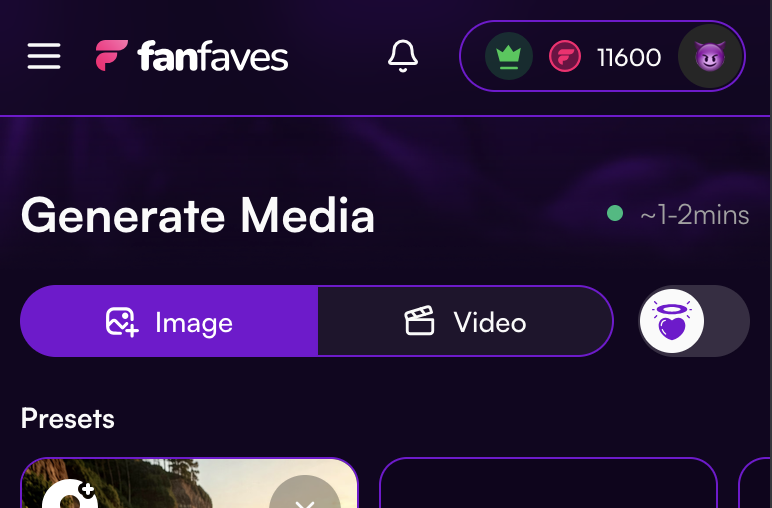
Select the mode you want to use:
Suggestive creates sexy, non-explicit images with suitable clothing and coverage.
Explicit allows adult content where supported by the selected creator.
Not every creator supports every mode. Changing modes may remove a creator or preset that is not available in the new mode.
Selecting Explicit mode does not automatically add nudity or sexual activity. Your selected pose, modifiers and prompt still determine what appears.

Choose the creator or AI character you want to generate.
FanFaves automatically handles their core appearance and identity, so you do not need to describe their face, body or other defining features in your custom prompt (premium feature).
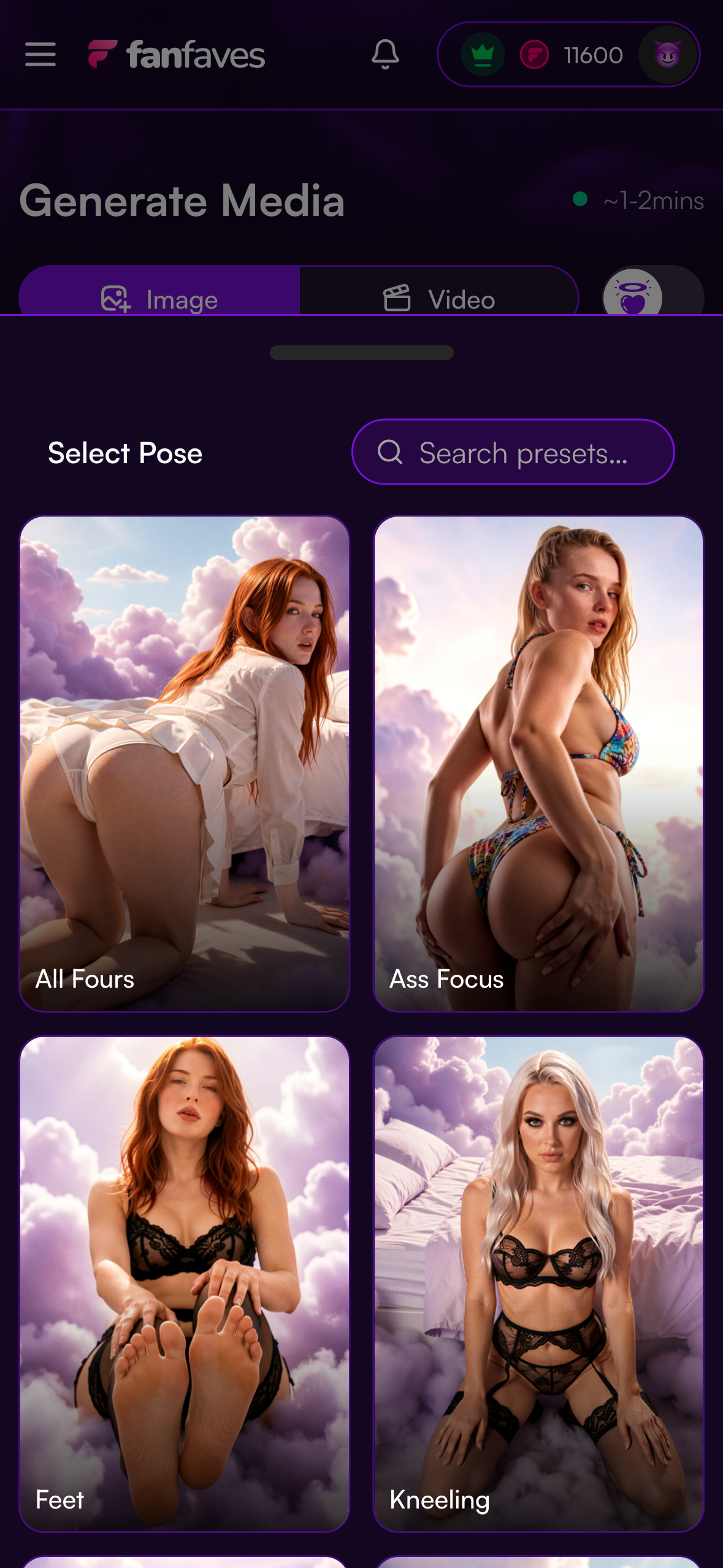
A pose is required for every image.
The pose controls the image’s main body structure, including whether the creator is:
Standing
Sitting
Kneeling
Squatting
Lying down
Facing toward or away from the camera
Performing a supported action
The preview shows the intended composition, but every generation will still have natural variation.
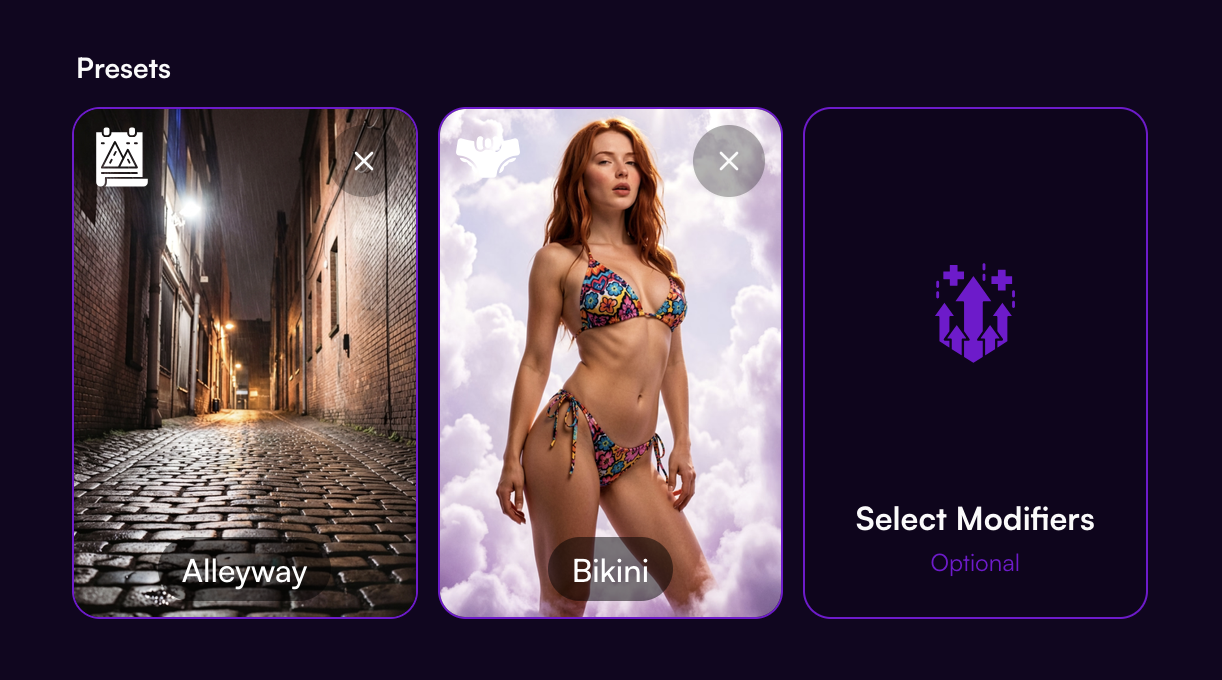
You can customise the image further with the following presets:
Scene: Selects the location, background, lighting and atmosphere.
Outfit: Selects the creator’s clothing and styling.
Modifiers: Adds specific visual details or effects. You can select up to two modifiers.
These are optional. Leaving a category empty gives the generator more freedom to choose a suitable result.
Avoid selecting presets simply to fill every slot. A smaller number of compatible choices usually produces a cleaner image.
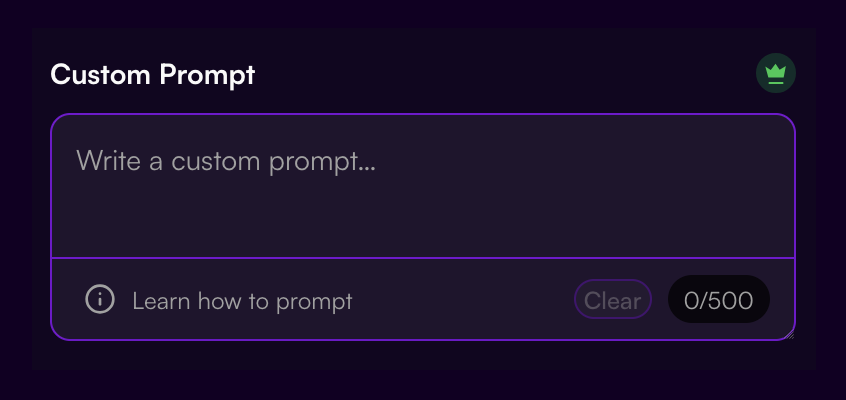
Custom prompts are available as a Premium feature and can contain up to 500 characters.
Use the custom prompt to add or change details such as:
Clothing style, colour or material
Location or background
Arm and hand placement
Expression and gaze
Hair styling
Props
Camera angle
Lighting, weather or time of day
Mood and atmosphere
For example:
Red floral lace lingerie on a softly lit hotel balcony at night, one hand in her hair, a confident smile and warm city lights behind her.Custom prompts have priority over conflicting outfit, scene and modifier descriptions. If you select an Underwear outfit but request red floral lace lingerie, the custom prompt should refine or replace the selected underwear.
However, custom prompts cannot change the selected pose’s core structure. If you select a kneeling pose and request that the creator stands against a wall, the result will remain kneeling. Choose a standing pose first, then use the prompt to describe the wall, expression, arms and other details.
For more example on custom prompting you can read our article on how to write good custom prompts
Select an aspect ratio that suits the composition:
4:5: Portraits, social posts and most general generations (Best for all)
9:16: Tall, full-body images and story-style content
1:1: Square portraits and balanced compositions
5:4: Wider portraits with more background
16:9: Cinematic scenes and landscape compositions
Tall ratios generally work best for standing or full-body poses. Square and 4:5 ratios are often better for portraits and closer compositions.
Adjusting ratios may include extra scene details.
Review your selections and the token cost shown on the button, then select Generate.
Your generation will begin in the background and appear in your recent generations when it is ready.
FanFaves combines your selections in the following order:
The selected content mode and platform safety rules
The creator’s identity
The pose’s core body structure
Your custom prompt
Outfit, scene and modifier presets for details you did not specify
A custom prompt can usually change:
Arms and hands
Head angle and gaze
Facial expression
Hair
Small changes to body tension or lean
Camera treatment
Clothing, scenery and lighting
It cannot completely replace:
Standing, sitting, kneeling or lying posture
The main torso and lower-body direction
Weight-bearing limbs
Required support surfaces or contact points
The pose’s participant count
The pose’s core action
If your idea needs a fundamentally different body position or action, select a more suitable pose instead of trying to override it in the prompt.
Hint: If there are poses you wish we had, reach out to us on our Subreddit or via the support center.
Your custom prompt can refine or completely replace the selected outfit and scene.
For example:
Outfit preset: Underwear
Custom prompt: Black floral lace lingerie with scalloped trim
The custom prompt supplies the more specific version.
If you plan to describe an entirely different outfit or location, you can also leave that preset empty. This reduces unnecessary conflicts.
You can select up to two modifiers, but more is not always better.
Choose modifiers that are:
Relevant to the visible composition
Compatible with each other
Compatible with the selected pose and mode
Conflicting modifiers may be adapted, weakened or ignored to create one physically possible image.
Custom prompts cannot bypass the selected generation mode or platform rules.
All depicted people must be consenting adults aged 18 or older. FanFaves does not allow illegal content, minors or age-ambiguous people, incest, non-consensual sexual content, incapacitated people, or sexual activity involving animals.
Unsupported details may be removed or safely adapted while preserving the rest of the request.
Video generation is currently being introduced to FanFaves. If the Video tab displays Coming Soon, it is not yet available for your account.
When video generation becomes available, Actions will replace image poses. You will select a creator, action, scene, outfit and optional modifiers using a similar process.
For video prompts, describe one clear movement rather than several actions at once. Simpler movements generally produce smoother and more consistent results.
Start with a creator and pose, then generate before adding lots of details.
Choose presets that describe one coherent image.
Make one change at a time when refining a result.
Use concrete visual language instead of abstract instructions.
Match the aspect ratio to the pose.
Use no more than the modifiers you genuinely need.
Keep the creator’s face visible and avoid requests that heavily obstruct it.
If a result becomes confused, remove conflicting presets and simplify the prompt.
Remember that AI generations naturally vary, even with identical selections.
Before selecting Generate, check that you have:
Chosen the correct content mode
Selected a creator or character
Selected a suitable pose
Added only compatible optional presets
Written a clear custom prompt, if needed
Chosen an appropriate aspect ratio
Reviewed the displayed token cost
Once everything looks right, select Generate and let FanFaves create your media.
